I just wired this up for my own build folder—where my current project is quietly piling up data—and figured it was worth writing down. The same trick works on any big codebase, a pile of assets, or a crowded /Applications folder. I generally use it on folders that don’t have frequent churn, but do have large or compressible things added to them often enough.
It relies on transparent file system compression (sometimes called AFSC), which has been built into macOS for years. It’s nothing like a zip archive: files aren’t bundled up or locked away—they keep their names, stay right where they are, and every app opens them as normal. macOS simply stores them compressed on disk and unpacks them on the fly as they’re read. The only thing that changes is the size on disk—often dramatically. Apps can even launch more quickly, which is why all Mac App Store downloads already have this sort of filesystem compression applied.
The classic tool for this is afsctool, but these days I reach for applesauce, a modern Rust rewrite. It compresses much faster by working on blocks in parallel, uses less memory, and writes safely via atomic temp-file renames so you can’t corrupt a file.
Rather than run it by hand in the Terminal or from a context menu every time, we can wire it into a Folder Action so files get compressed the moment they land in a folder.
Install applesauce
Two easy options:
# Homebrew (lives in a custom tap, not the core repo)
brew install Dr-Emann/homebrew-tap/applesauce

# or the standalone installer, if you'd rather skip brew
curl --proto '=https' --tlsv1.2 -LsSf https://github.com/Dr-Emann/applesauce/releases/latest/download/applesauce-cli-installer.sh | sh
Then find where it landed:
which applesauce
On Apple silicon brew installs to /opt/homebrew/bin/; older Intel Macs use /usr/local/bin/. We’ll need that path in a moment.
Create the Folder Action
Folder Actions is a built-in macOS directory watcher. We’ll build one with Automator:
- Open Automator, choose New Document, pick Folder Action.
- At the top, set receives files and folders added to: to your target folder.
- If Automator drops in a Get Selected Finder Items action, delete it—Folder Actions already pass incoming files along, so keeping it breaks the pipeline.
- Search the sidebar for Run AppleScript and drag it into the workflow.
- Paste this, swapping the path if yours differs:
on run {input, parameters}
	repeat with theItem in input
		try
			do shell script "/opt/homebrew/bin/applesauce compress " & quoted form of (POSIX path of theItem)
		end try
	end repeat
	return input
end run
Save (Cmd + S) as something descriptive like “Compress”, drop a few files into the folder, and macOS shrinks them behind the scenes. Pretty easy!
Just for you, here’s one I made earlier: Compress.workflow.zip (93 KB)
No sudo required
Changing a file’s compression sounds like root territory, but applesauce only writes to your own user-owned folders, so it isn’t. That means no Touch ID or password prompts breaking your flow, and nothing running with privileges it doesn’t need.
What triggers it
Worth knowing before you lean on this: a Folder Action only fires when items are added to the folder (or removed from it), never when a file already sitting inside it changes. It isn’t recursive either—only the top level of the folder is watched, not the contents of any subfolders. That’s straight from Apple’s docs.
For /Applications that comes with a catch. When an app updates itself it usually swaps in a whole new .app bundle, which is technically a new item—but Folder Actions have always been flaky at noticing changes made by anything other than Finder, and updaters move files into place programmatically. So don’t count on self-updating apps getting re-compressed for you. When you want to be sure, drag the app out and back in, or just re-run applesauce compress on it by hand.
Choosing the algorithm
By default applesauce compress uses LZFSE, Apple’s fast and well-balanced algorithm—a good pick for almost everything. Two others are available:
- LZVN — tuned for 64-bit, very fast to decompress.
- ZLIB — slower to compress, but often the best ratio.
Force one with -c:
do shell script "/opt/homebrew/bin/applesauce compress -c LZVN " & quoted form of (POSIX path of theItem)
And applesauce info <path> will report the ratio and algorithm any file ended up with. You beauty!
Managing setup
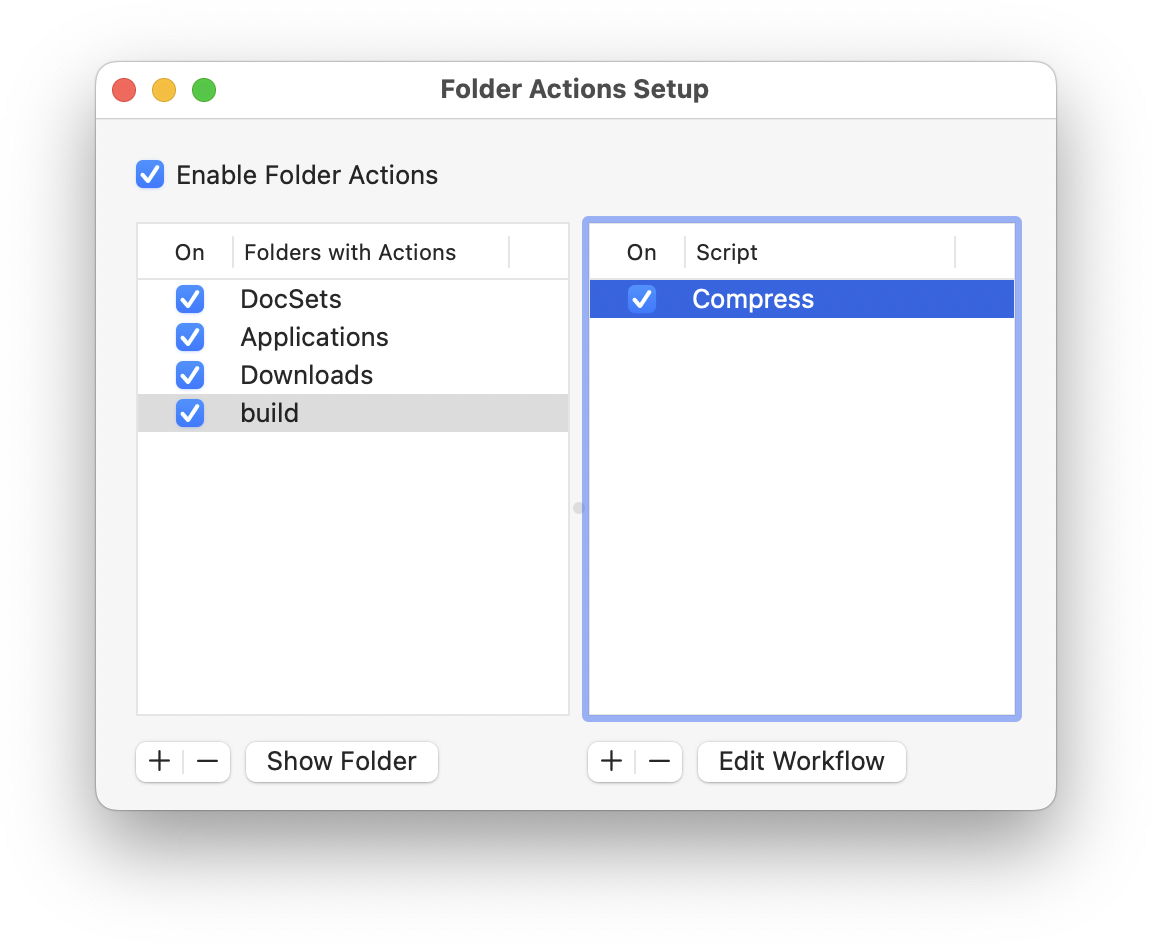
Saving from Automator attaches the action to the folder you chose, but you can wire the same “Compress” action to more folders—or check it’s switched on if nothing’s happening—from the Folder Actions Setup dialog. Right-click any folder in Finder and choose Services → Folder Actions Setup…
- Tick Enable Folder Actions (bottom-left).
- Add the folder you want watched to the left column.
- Pick “Compress” from the actions on the right.
Now anything you drop into that folder gets squeezed automatically, no matter how it got there.
Results
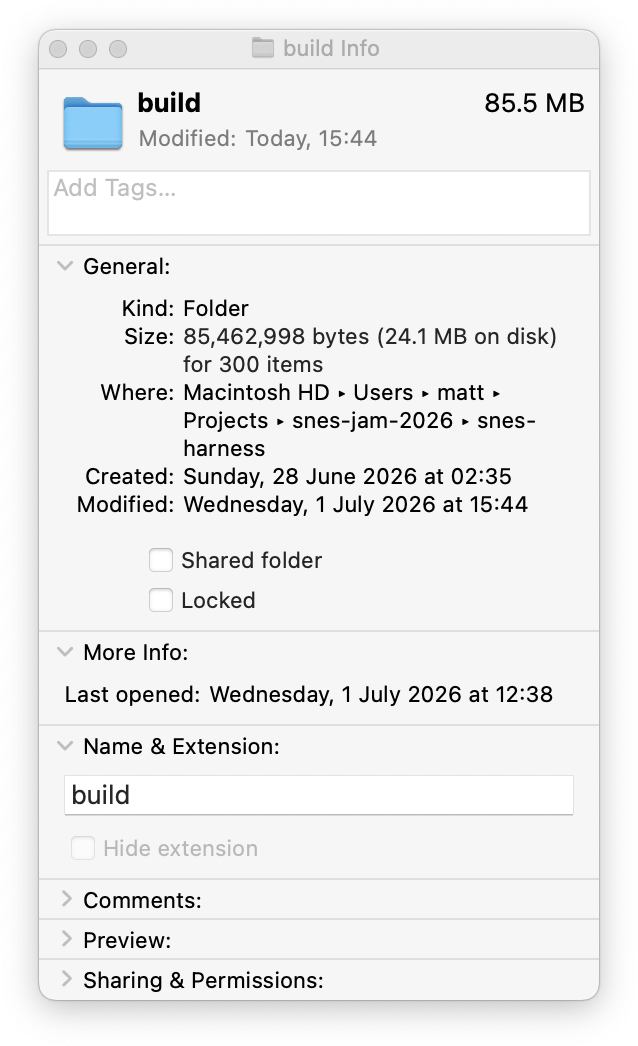
We can confirm the savings with Finder’s Get Info (wouldn’t that be a great name for a blog?). The Size line still reports the full, uncompressed size—that’s what apps see—while the smaller figure in brackets is what the folder now actually takes up on disk. The gap between the two is the saving.
For finer detail, applesauce info <path> prints the exact ratio and algorithm file by file.
Found this educational? Consider buying me a coffee.
--
Comments: Twitter , Bluesky , Mastodon